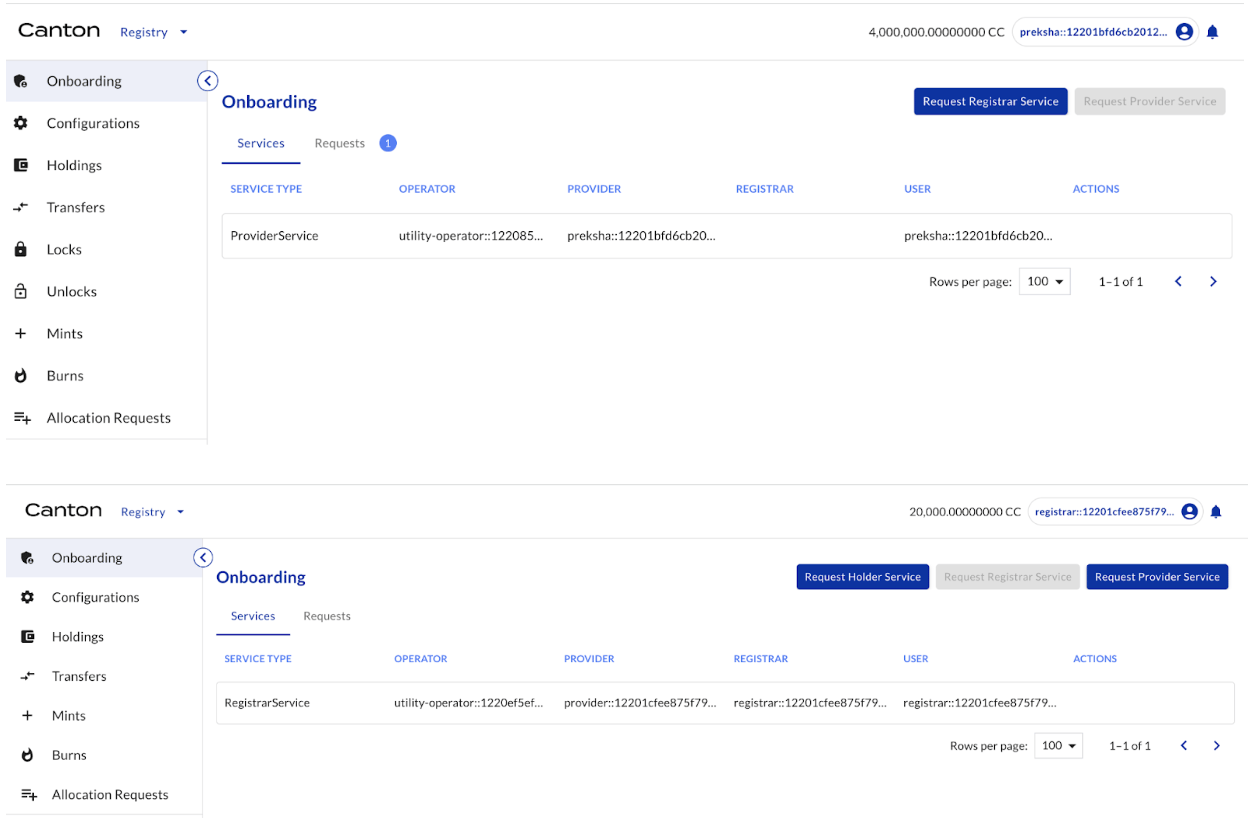
Onboarding credential services for all entities
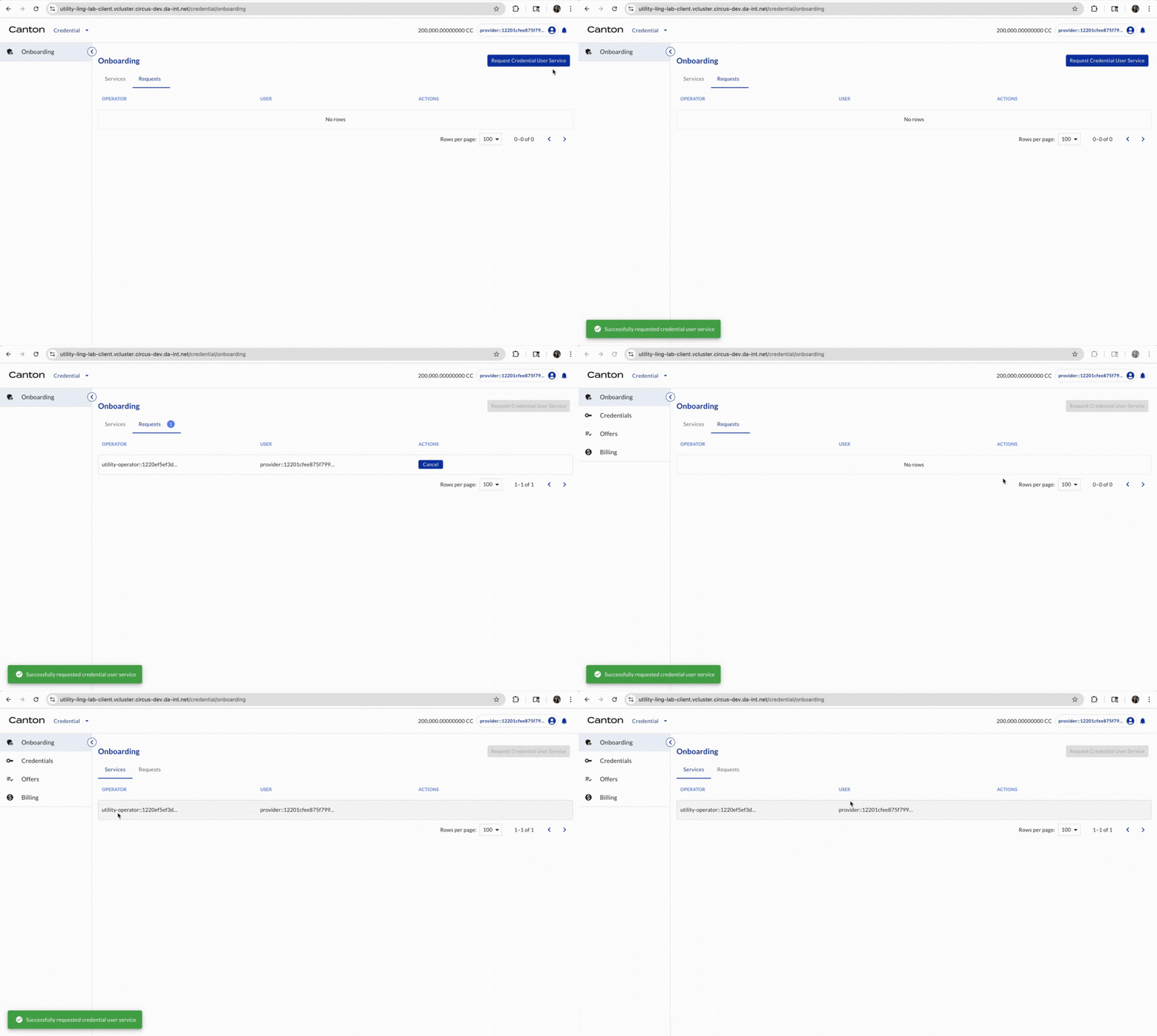
All entities request credential service from DA, the Operator.
Select ONBOARDING on the left navigation. Click REQUEST CREDENTIAL USER SERVICE on the right side. A request is shown in the REQUESTS table in the REQUESTS tab. The request is automatically accepted in the DevNet. Now the credential service is created in the SERVICES table.
Provider credential
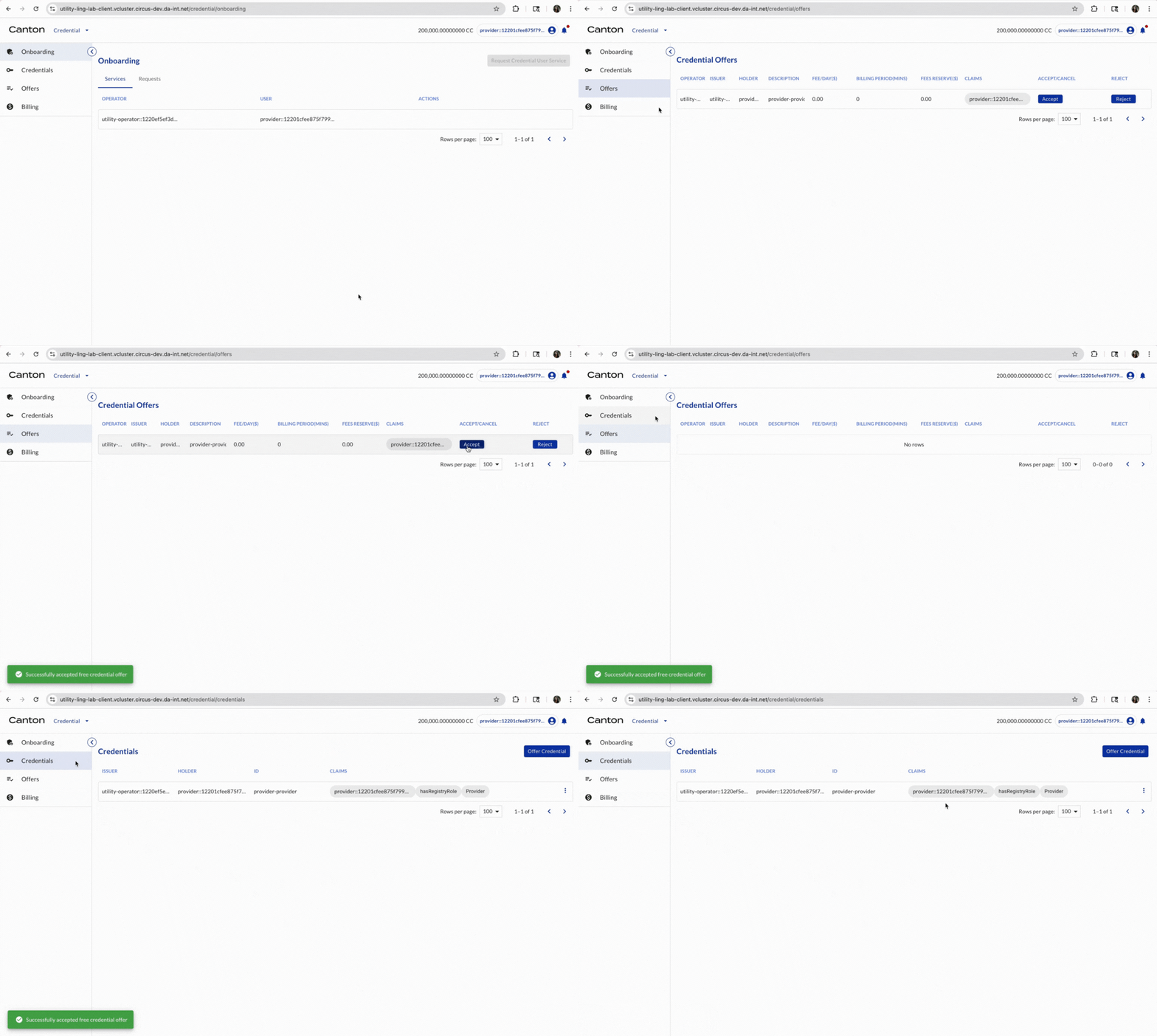
DA as the Operator offers a credential to Provider. Provider accepts this credential offer.
Select OFFERS on the left navigation. If there is a credential offer, click ACCEPT. Then select CREDENTIALS on the left navigation. The onboarding credential for onboarding provider will be there.
Onboard Provider
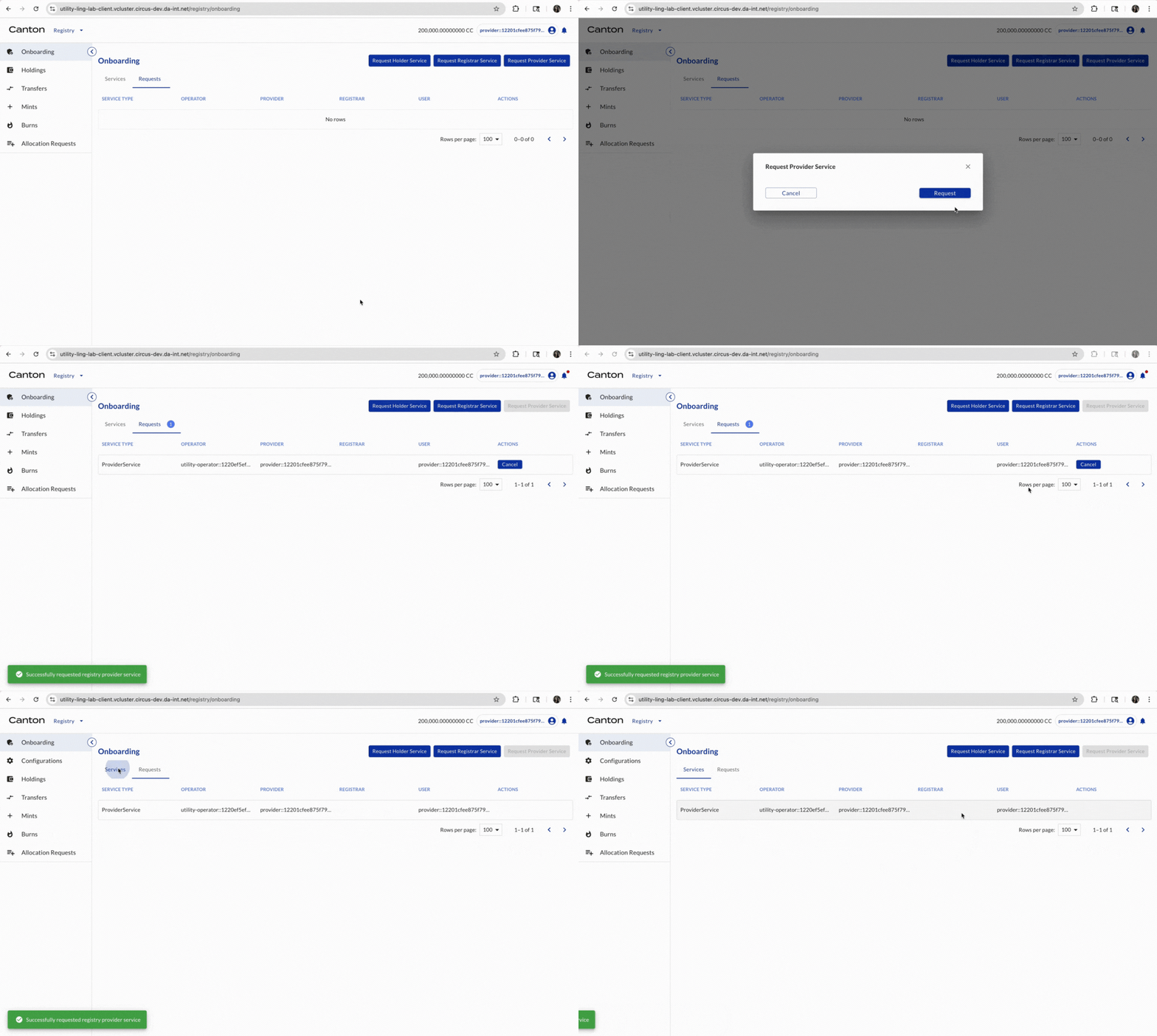
Select ONBOARDING on the left navigation. In the Services box, click REQUEST PROVIDER SERVICE. A request is shown in the Requests box. (Wait for acceptance by the Operator). Once accepted, a Provider Service is created. Now Provider is onboarded as a Provider.
Onboard requirements for registrars and holders
Here Provider specifies the credential requirement, i.e. what credentials are needed in order to be onboarded as a registrar or a holder.
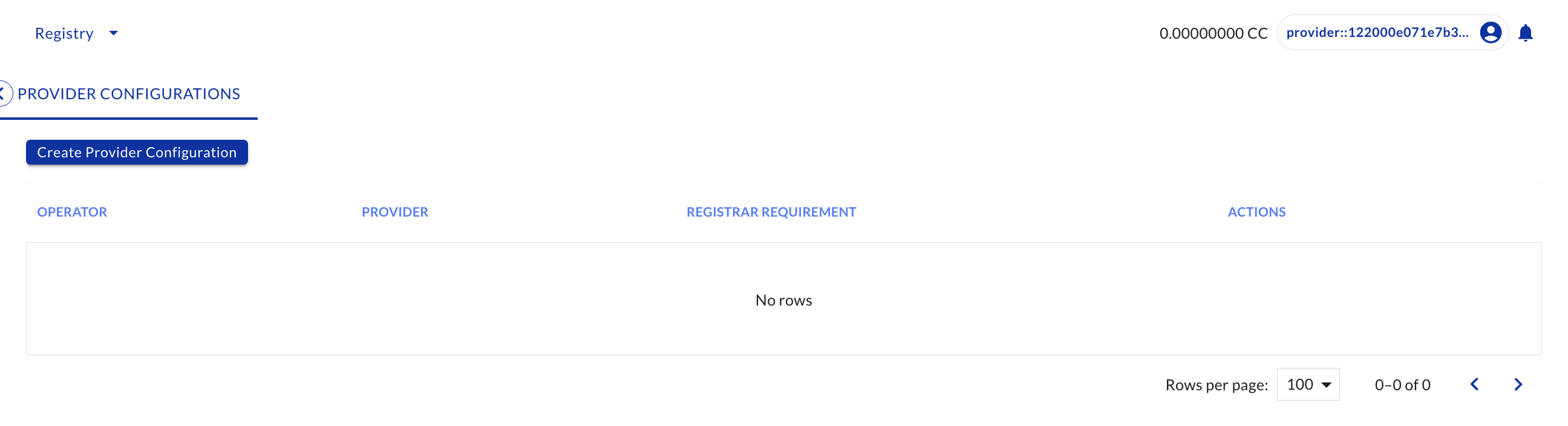
Select CONFIGURATIONS on the left navigation. In the Provider Configurations box, click CREATE PROVIDER CONFIGURATION.
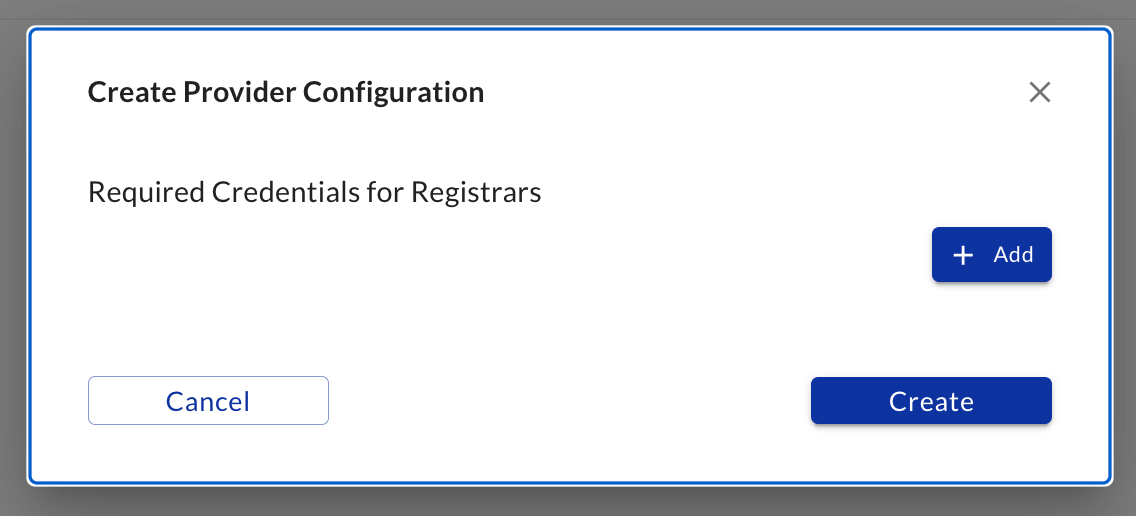
Under Required Credentials for Registrars, click ADD.
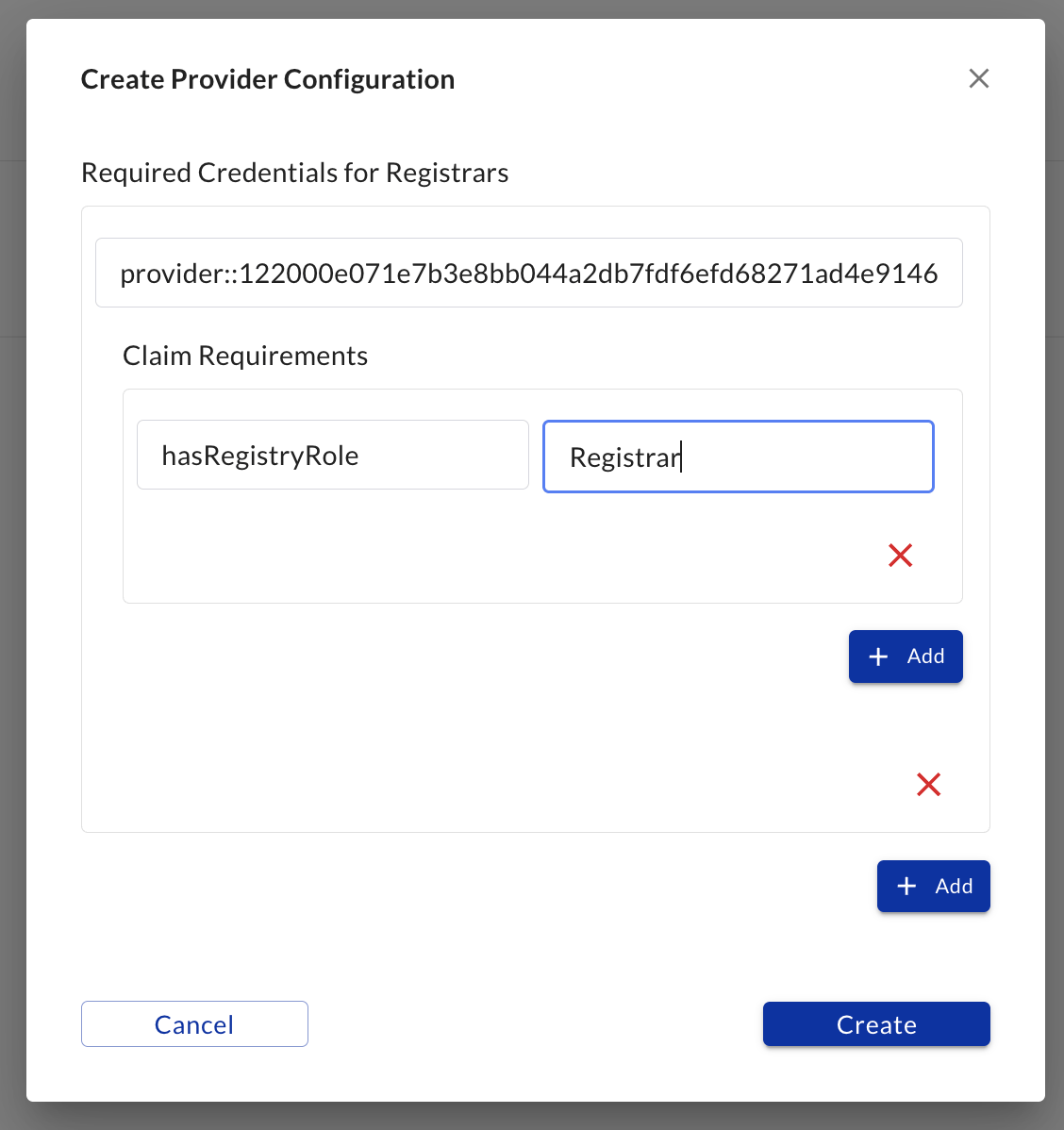
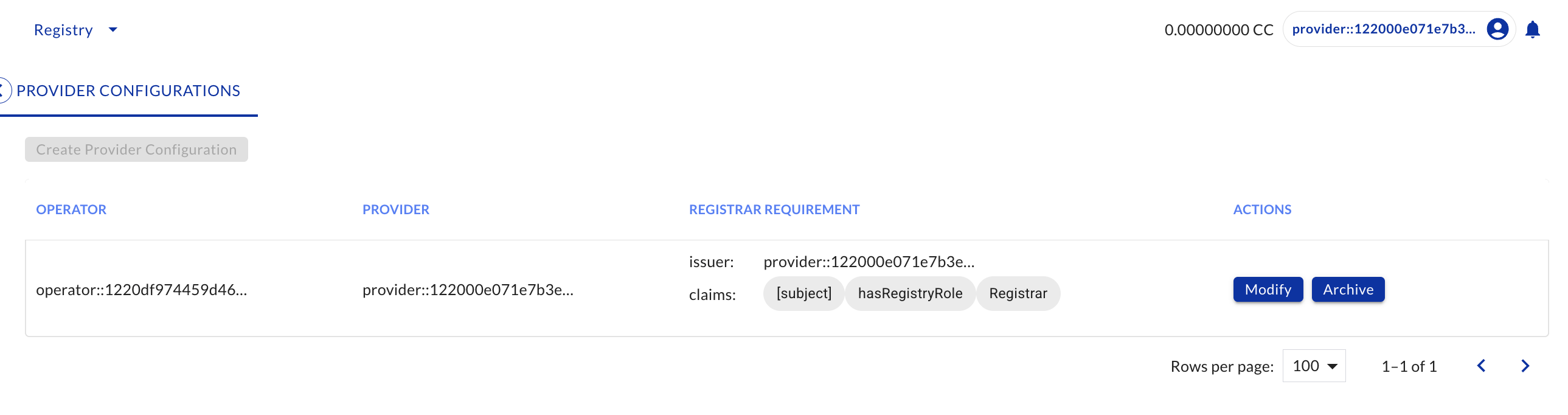
- In the Credential Issuers, paste the Provider’s Party ID.
- Then under Claim Requirements (where subject is the holder), click ADD.
- In Property, input hasRegistryRole.
- In Value, input Registrar.
Provider offers Registrar credential
Provider offers a free credential to Registrar.
Select CREDENTIALS on the left navigation. Click OFFER FREE CREDENTIAL. A window pops up for input. Click OFFER. A credential offer is created (check OFFERS on the left navigation). The Registrar can then accept the credential offer.
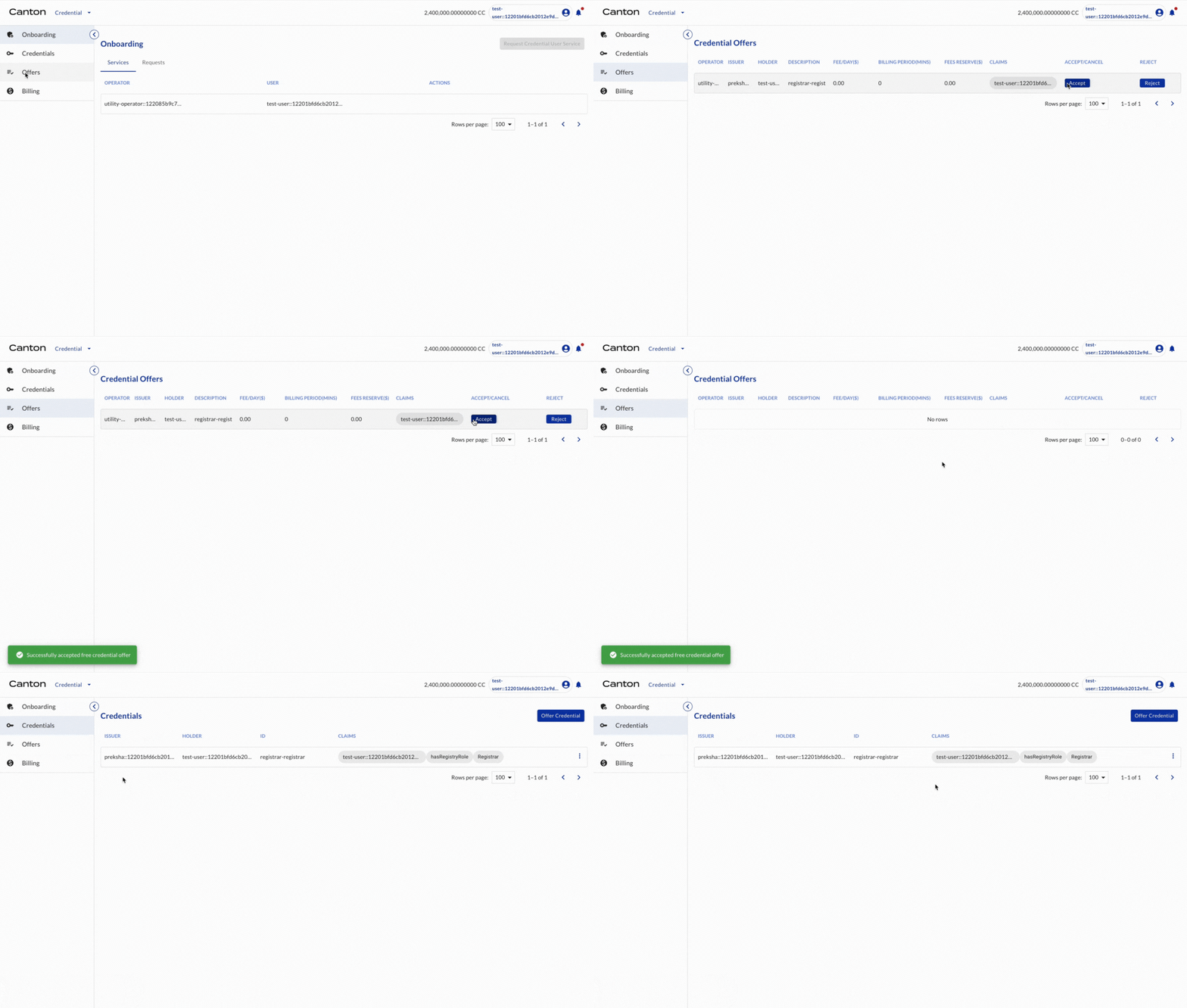
Registrar accepts credential offer
Registrar accepts the credential offer as a Registrar.
Select OFFERS on the left navigation. There is a credential offer from Provider. Click ACCEPT. Now a credential is created (check CREDENTIALS on the left navigation).
Registrar requests onboarding as a Registrar in the Registry
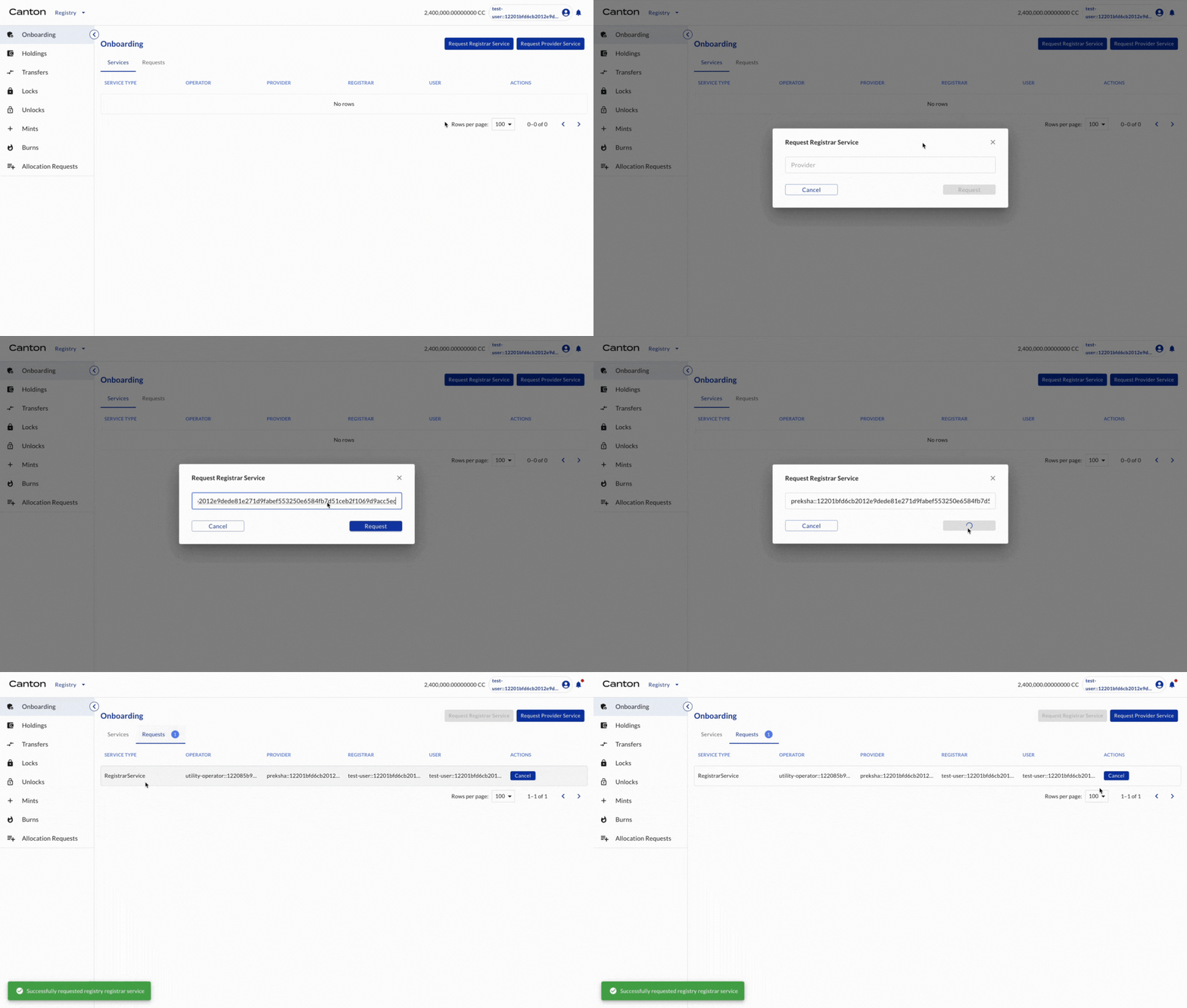
Registrar requests onboarding in the Registry as a Registrar.
Select ONBOARDING on the left navigation. In the Services tab, click REQUEST REGISTRAR SERVICE. A window pops up for input. Input Provider’s party ID. Click REQUEST. A request is shown in the REQUESTS tab.
Provider accepts onboarding request from Registrar
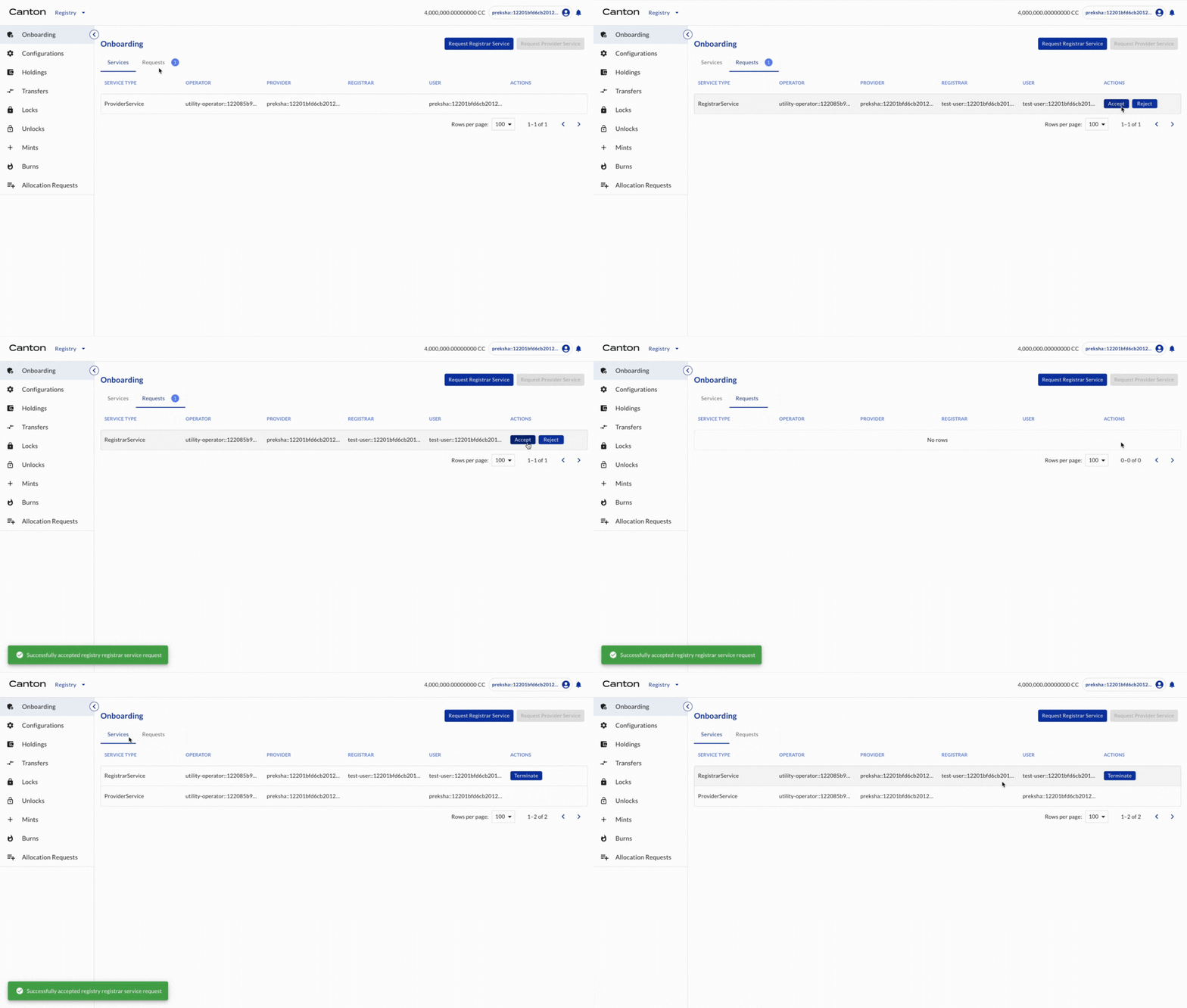
Provider accepts the request.
Select ONBOARDING on the left navigation. In the Services tab, Provider sees the request. Click ACCEPT. Now the Registrar is onboarded as a Registrar by the Provider.
All entities are onboarded
Provider is onboarded by the Operator (DA) and Registrar is onboarded by the Provider.