- Overview
- Tutorials
- Getting started
- Get started with Canton and the JSON Ledger API
- Get Started with Canton, the JSON Ledger API, TypeScript and WebSockets
- Get Started with Canton, the JSON Ledger API, and TypeScript
- Get started with Canton Network App Dev Quickstart
- Using the JSON Ledger API
- Deploy Quickstart to DevNet
- Appendix
- Get started with smart contract development
- Basic contracts
- Test templates using Daml scripts
- Build the Daml Archive (.dar) file
- Data types
- Transform contracts using choices
- Add constraints to a contract
- Parties and authority
- Compose choices
- Handle exceptions
- Work with dependencies
- Functional programming 101
- The Daml standard library
- Test Daml contracts
- Next steps
- Application development
- Getting started
- Development how-tos
- Component how-tos
- Explanations
- References
- Application development
- Smart contract development
- Daml language cheat sheet
- Daml language reference
- Daml standard library
- DA.Action.State.Class
- DA.Action.State
- DA.Action
- DA.Assert
- DA.Bifunctor
- DA.Crypto.Text
- DA.Date
- DA.Either
- DA.Exception
- DA.Fail
- DA.Foldable
- DA.Functor
- DA.Internal.Interface.AnyView.Types
- DA.Internal.Interface.AnyView
- DA.List.BuiltinOrder
- DA.List.Total
- DA.List
- DA.Logic
- DA.Map
- DA.Math
- DA.Monoid
- DA.NonEmpty.Types
- DA.NonEmpty
- DA.Numeric
- DA.Optional
- DA.Record
- DA.Semigroup
- DA.Set
- DA.Stack
- DA.Text
- DA.TextMap
- DA.Time
- DA.Traversable
- DA.Tuple
- DA.Validation
- GHC.Show.Text
- GHC.Tuple.Check
- Prelude
- Smart contract upgrading reference
- Glossary of concepts
Deploy Quickstart to DevNet
Overview
In this guide, you’ll deploy the Quickstart app from LocalNet to DevNet. You’ll deploy the original DAR, deploy to the backend, frontend and test the workflow.
You should have the Quickstart application installed and understand the Canton Network quickstart project structure.
DevNet validator prerequisite
You must have successfully submitted a validator request to successfully complete this guide.
Submit your request at: https://canton.foundation/apply-to-set-up-a-validator-node/
Visit the global synchronizer docs to learn more about the validator onboarding process and how to deploy a validator with Docker Compose.
You can find up-to-date Canton Foundation DevNet Super Validator Node Information at: https://canton.foundation/sv-network-status/
Architectural overview
The Quickstart DevNet deployment splits across two components:
splice-node: Provides the validator infrastructure (participant, validator, wallet-ui, ans-ui)
cn-quickstart: Provides the application layer (keycloak, pqs, backend-service, frontend)
┌────────────────────────────────────────────────────────────────┐
│                         splice-node                            │
│  ┌─────────────┐  ┌─────────────┐  ┌──────────┐  ┌──────────┐  │
│  │ Participant │  │  Validator  │  │ Wallet-UI│  │  ANS-UI  │  │
│  │   :8080     │  │   :5012     │  │  :3000   │  │  :3000   │  │
│  └─────────────┘  └─────────────┘  └──────────┘  └──────────┘  │
└────────────────────────────────────────────────────────────────┘
         │                  │
         │ Ledger API       │ Registry API
         ▼                  ▼
┌────────────────────────────────────────────────────────────────┐
│                         cn-quickstart                          │
│  ┌──────────┐  ┌──────────┐  ┌─────────────┐  ┌─────────────┐  │
│  │ Keycloak │  │   PQS    │  │  Backend    │  │  Frontend   │  │
│  │  :8082   │  │ (scribe) │  │   :8089     │  │   :5173     │  │
│  └──────────┘  └──────────┘  └─────────────┘  └─────────────┘  │
└────────────────────────────────────────────────────────────────┘
splice-node ports are internal container ports and routed via nginx by hostname.
cn-quickstart ports are directly exposed.
The frontend communicates with the backend via HTTP REST calls to /api/* endpoints.
The Vite development server proxies these requests to the backend, which translates them into Ledger API calls.
For a detailed explanation of this fully mediated architecture, see Canton Network quickstart project structure.
Quickstart configuration for DevNet
Quickstart environment variables are set for LocalNet usage by default,
but ledger connections differ between LocalNet and DevNet configurations.
For example:
Variable |
LocalNet Value |
DevNet Value |
|---|---|---|
|
|
|
|
|
|
Configure Host entries
nginx.conf uses virtual hosting to route requests to backend services.
As a result, nginx inspects your Host HTTP header to determine backend routing.
Add explicit host entires for reliable routing.
Add these entries to /etc/hosts:
sudo vim /etc/hosts

127.0.0.1 json-ledger-api.localhost
127.0.0.1 grpc-ledger-api.localhost
127.0.0.1 validator.localhost
127.0.0.1 app-provider.localhost
127.0.0.1 participant.localhost
127.0.0.1 wallet.localhost
127.0.0.1 ans.localhost
127.0.0.1 keycloak.localhost
127.0.0.1 host.docker.internal
You only need to complete this step one time.
Host Entry |
URL |
Purpose |
|---|---|---|
|
|
JSON Ledger API (REST commands, DAR uploads) |
|
|
gRPC Ledger API (backend’s |
|
|
Validator application API |
|
|
Canton Wallet web interface |
|
|
Quickstart frontend web interface |
|
|
Participant admin/metrics |
|
|
Canton Name Service (ANS) web interface |
|
|
OAuth2/OIDC provider |
The nginx proxy routes based on hostname. Default port is 80.
MacOS users may need to change the validator port from 80 to 8080 to avoid
vmnetd errors. See Resolve vmnetd error in the Troubleshooting section.
Clone the Splice-Node Validator repository
In DevNet, your Splice node validator runs locally and connects to the DevNet synchronizer.
Clone the correct version of the Splice-node repository and navigate to the validator Docker Compose directory. As of the writing of this document, the most up to date version is 0.5.6.
Note
You can check for the most up to date release for yourself by navigating to https://github.com/digital-asset/decentralized-canton-sync.
Click on “Main” then search through the release-line options.
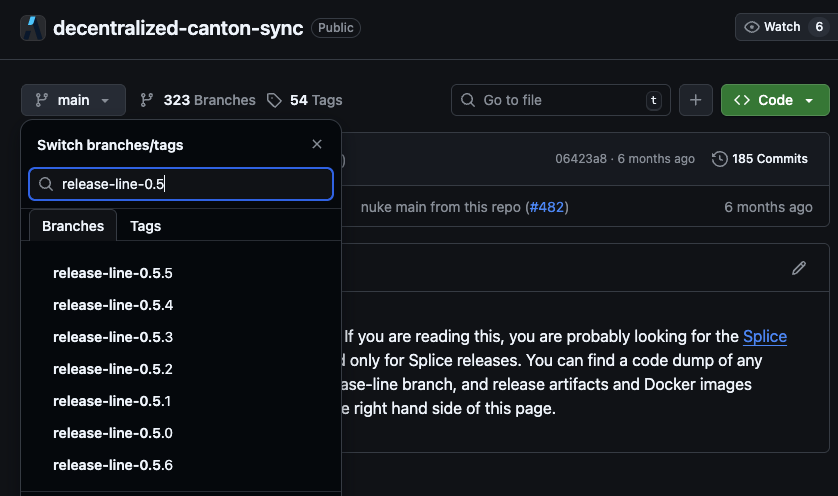
The following link downloads the 0.5.6 splice-node release.
Move the downloaded file to the location of your choice.
(To download a different release, simply edit the version numbers in the URL).
Click the link to download the splice node release: https://github.com/digital-asset/decentralized-canton-sync/releases/download/v0.5.6/0.5.6_splice-node.tar.gz
Move the splice-node tarball to your desired location and then unzip it.
tar xzvf 0.5.6_splice-node.tar.gz
The new splice-node repo and cn-quickstart should be siblings to one another.
.
├── Canton_Network_App_Dev
│   ├── cn-quickstart
└── └── splice-node
Note
You only need to complete this step one time for any given splice-node release.
Connect to a Canton Network Validator Node
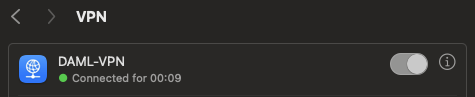
Navigate to your OS’s VPN settings, then connect to your sponsoring validator node.
VPN access is required for DevNet. Contact your sponsoring SV for VPN credentials.
Mac OS
Settings > VPN
Enable your Canton Network VPN
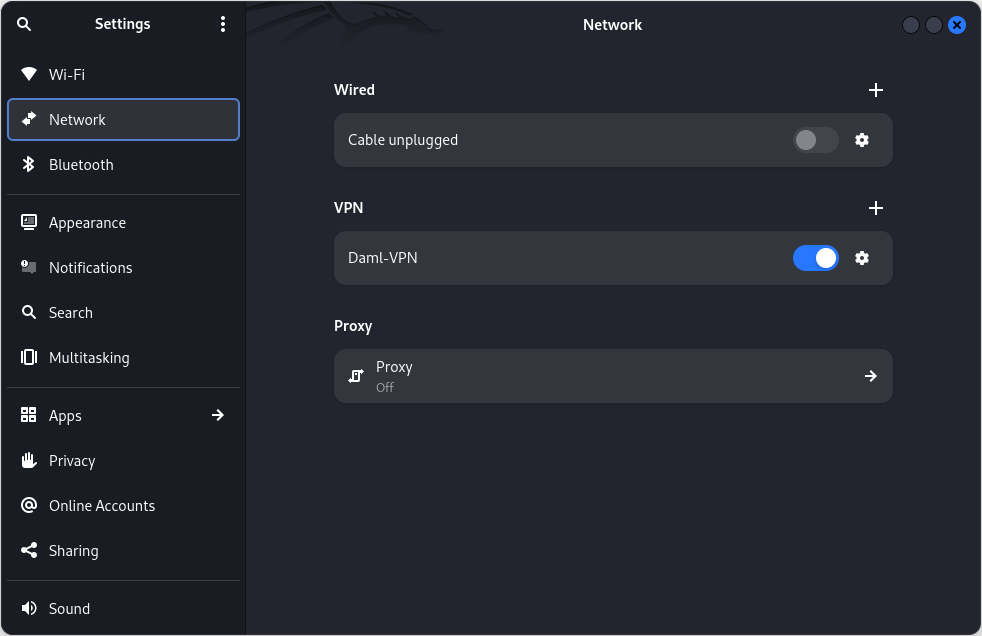
Linux
Network > VPN
Clean Docker
Clear Docker If this is not your first time connecting to DevNet so that stale containers do not interfere.
docker compose down -v
Get network information
Retrieve DevNet migration ID and Splice version
In terminal, from the /validator directory run:
INFO_URL="https://docs.dev.global.canton.network.sync.global/info"
SPLICE_VERSION=$(curl -s "$INFO_URL" | jq -r '.synchronizer?.active?.version')
MIGRATION_ID=$(curl -s "$INFO_URL" | jq -r '.synchronizer?.active?.migration_id')

echo "Splice Version: $SPLICE_VERSION"
echo "Migration ID: $MIGRATION_ID"
Verify that the Splice version matches the splice-node version that you recently downloaded and unzipped.
Minor Splice versions change on a regular basis.
You may elect to hard code SPLICE_VERSION rather than saving the most recent version. e.g. SPLICE_VERSION=0.5.6
Get the onboarding secret
You may use the following Super Validator URL if you are connected to the Canton Network Global Synchronizer.
If not, your sponsoring SV will provide the appropriate URL.
In this case, you must replace the provided SPONSOR_SV_URL with your provided URL.
# GSF Sponsor SV URL for DevNet
SPONSOR_SV_URL="https://sv.sv-1.dev.global.canton.network.sync.global"

# Request and store the onboarding secret
ONBOARDING_SECRET=$(curl -s -X POST "$SPONSOR_SV_URL/api/sv/v0/devnet/onboard/validator/prepare")
echo $ONBOARDING_SECRET
Tip
The onboarding secret is only good for 1 hour. If containers ever show unhealthy, try requesting a new onboarding secret as your first step in troubleshooting.
Party Hint
Set a Party Hint.
The party hint must match the expected hint that is established when running make setup from cn-quickstart/quickstart.
If you don’t remember your party hint, you can open a terminal and navigate to cn-quickstart/quickstart/, then run make setup.
The default party hint is quickstart-USERNAME-1
Return to the terminal in the validator directory. Set PARTY_HINT.
PARTY_HINT="quickstart-USERNAME-1"
This value must match the expected party hint.
Authentication
Note
If you would like to connect to DevNet without authentication, you may skip this section and initiate the start.sh script without the -a flag.
Update authentication variables in splice-node/docker-compose/validator/.env using Quickstart’s pre-configured Keycloak values.
The following Authentication values can be found in cn-quickstart’s keycloak env, realm and user JSON files.
Files include quickstart/quickstart/docker/modules/keycloak/compose.env, AppProvider-realm.json, and AppProvider-users-0.json.
splice-node/docker-compose/validator/.env
# Authentication

# OIDC Provider URLs
AUTH_URL="http://keycloak.localhost:8082"
AUTH_JWKS_URL="http://host.docker.internal:8082/realms/AppProvider/protocol/openid-connect/certs"
AUTH_WELLKNOWN_URL="http://host.docker.internal:8082/realms/AppProvider/.well-known/openid-configuration"

# Audiences
LEDGER_API_AUTH_AUDIENCE="https://canton.network.global"
LEDGER_API_AUTH_SCOPE=""       # Optional, leave empty
VALIDATOR_AUTH_AUDIENCE="https://canton.network.global"

# Validator client credentials
VALIDATOR_AUTH_CLIENT_ID="app-provider-validator"
VALIDATOR_AUTH_CLIENT_SECRET="AL8648b9SfdTFImq7FV56Vd0KHifHBuC"

# Admin users
LEDGER_API_ADMIN_USER="service-account-app-provider-validator"
WALLET_ADMIN_USER="app-provider"

# UI Clients
WALLET_UI_CLIENT_ID="app-provider-wallet"
ANS_UI_CLIENT_ID="app-provider-ans"
Note
These are development secrets and should be changed for production.
Start the validator with the start.sh script.
Verify that you are in the validator directory, then run this command to connect to DevNet:
./start.sh \
 -s "https://sv.sv-1.dev.global.canton.network.sync.global" \
 -o "$ONBOARDING_SECRET" \
 -p "$PARTY_HINT" \
 -m $MIGRATION_ID \
 -w \
 -a
Flag descriptions
Flag |
Description |
|---|---|
|
Sponsor SV URL |
|
Onboarding secret |
|
Your unique party hint |
|
Migration ID (a non-negative integer) |
|
Wait for validator to be fully operational |
|
Enable authentication |
Note
You can omit the -a flag to skip authentication setup.
This may make initial testing easier, but you should enable authentication for production use.
While DevNet is starting, move on to the next step.
(You’ll need to complete the next step before DevNet is able to connect).
Spin up the Quickstart DevNet
In a second terminal, navigate to the Quickstart DevNet Docker Compose directory.
cd cn-quickstart/quickstart/docker/modules/devnet

docker compose --env-file compose.env --profile devnet up -d postgres-keycloak keycloak nginx-keycloak postgres-pqs pqs-app-provider backend-service
devnet ~ % docker compose --env-file compose.env --profile devnet up -d postgres-keycloak keycloak nginx-keycloak postgres-pqs pqs-app-provider backend-service
[+] Running 7/7
 ✔ Container postgres-pqs          Healthy                  27.5s
 ✔ Container postgres-keycloak     Healthy                  6.2s
 ✔ Container keycloak              Healthy                  26.7s
 ✔ Container nginx-keycloak        Started                  26.7s
 ✔ Container splice-onboarding     Healthy                  41.3s
 ✔ Container pqs-app-provider      Started                  27.3s
 ✔ Container backend-service       Started                  41.4s
DevNet connects shortly after spinning up the docker containers.
A successful connection shows healthy containers.
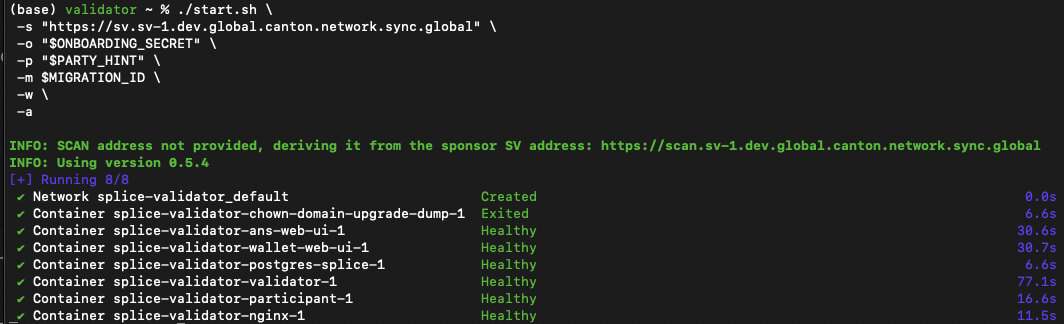
Note
See the Troubleshooting section if you experience a vmnetd error.
Build and upload the DAR
Return to the /quickstart directory.
cd ../../../
Then build the Daml code.
make build-daml
Verify that the DAR was created.
ls -la daml/licensing/.daml/dist/quickstart-licensing-0.0.1.dar
If successful, this command returns the DAR file.
-rw-r--r-- 1 username staff 685582 Nov 25 09:00 daml/licensing/.daml/dist/quickstart-licensing-0.0.1.dar
Upload the DAR to your DevNet validator
Get a token from Keycloak to make an authenticated request:
TOKEN=$(curl -s -X POST "http://keycloak.localhost:8082/realms/AppProvider/protocol/openid-connect/token" \
  -d "grant_type=client_credentials" \
  -d "client_id=app-provider-validator" \
  -d "client_secret=AL8648b9SfdTFImq7FV56Vd0KHifHBuC" | jq -r .access_token)
(Note that the client_secret matches the app-provider-validator’s secret in Keycloak’s AppProvider-realm.json).
From the /quickstart directory, upload the DAR to your DevNet validator (MacOS users replace ${LEDGER_PORT} with 8080):
MacOS
curl -X POST "http://json-ledger-api.localhost:8080/v2/dars?vetAllPackages=true" \
  -H "Authorization: Bearer $TOKEN" \
  -H 'Content-Type: application/octet-stream' \
  --data-binary @daml/licensing/.daml/dist/quickstart-licensing-0.0.1.dar
Linux
curl -X POST "http://json-ledger-api.localhost:${LEDGER_PORT}/v2/dars?vetAllPackages=true" \
  -H "Authorization: Bearer $TOKEN" \
  -H 'Content-Type: application/octet-stream' \
  --data-binary @daml/licensing/.daml/dist/quickstart-licensing-0.0.1.dar
An empty response of {} indicates a successful upload.
Build the Backend
Build the backend from the /quickstart directory:
make build-backend
Configure Quickstart frontend for DevNet
The frontend communicates with the backend via HTTP REST calls to /api/* endpoints.
The Vite development server proxies these requests to the backend,
which translates them into Ledger API calls to the DevNet participant.
Review vite.config.ts for details.
Build the frontend from the /quickstart directory:
make build-frontend
Start the Vite development server.
make vite-dev
The frontend runs on port 5173.
Open your browser to:
http://app-provider.localhost:5173
It’s extremely important to prepend localhost with app-provider
in order to successfully log in through Keycloak.
Select AppProvider
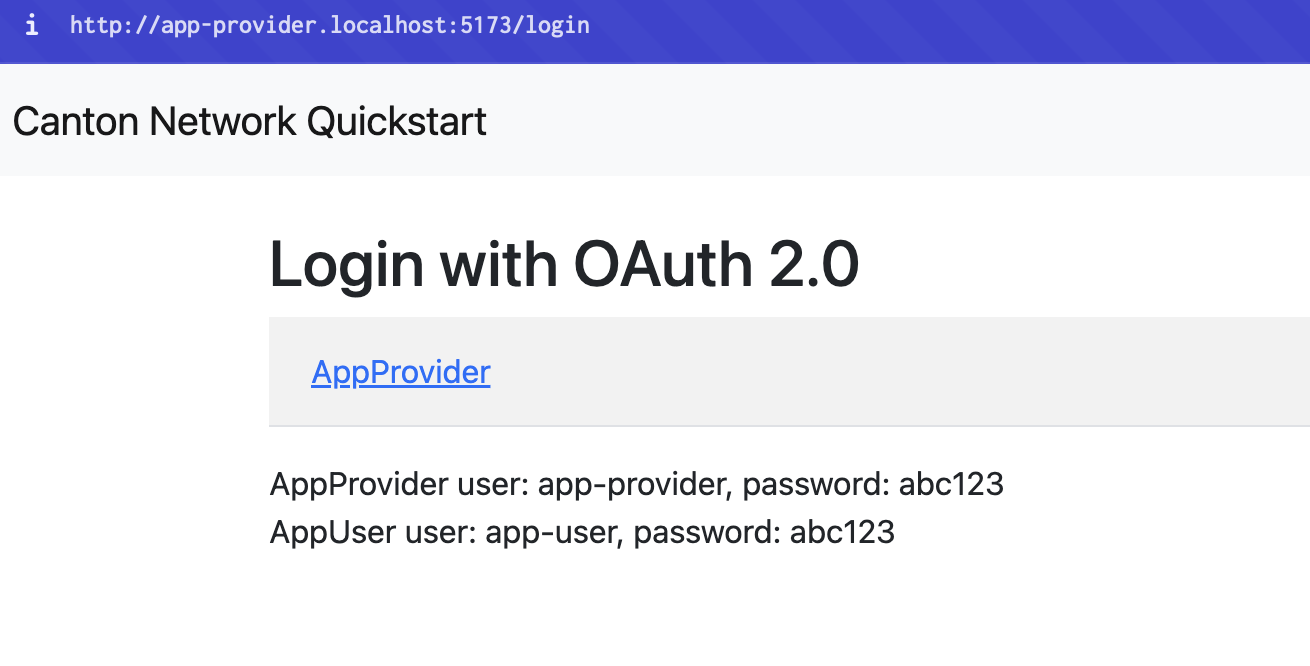
Login as app-provider with password abc123
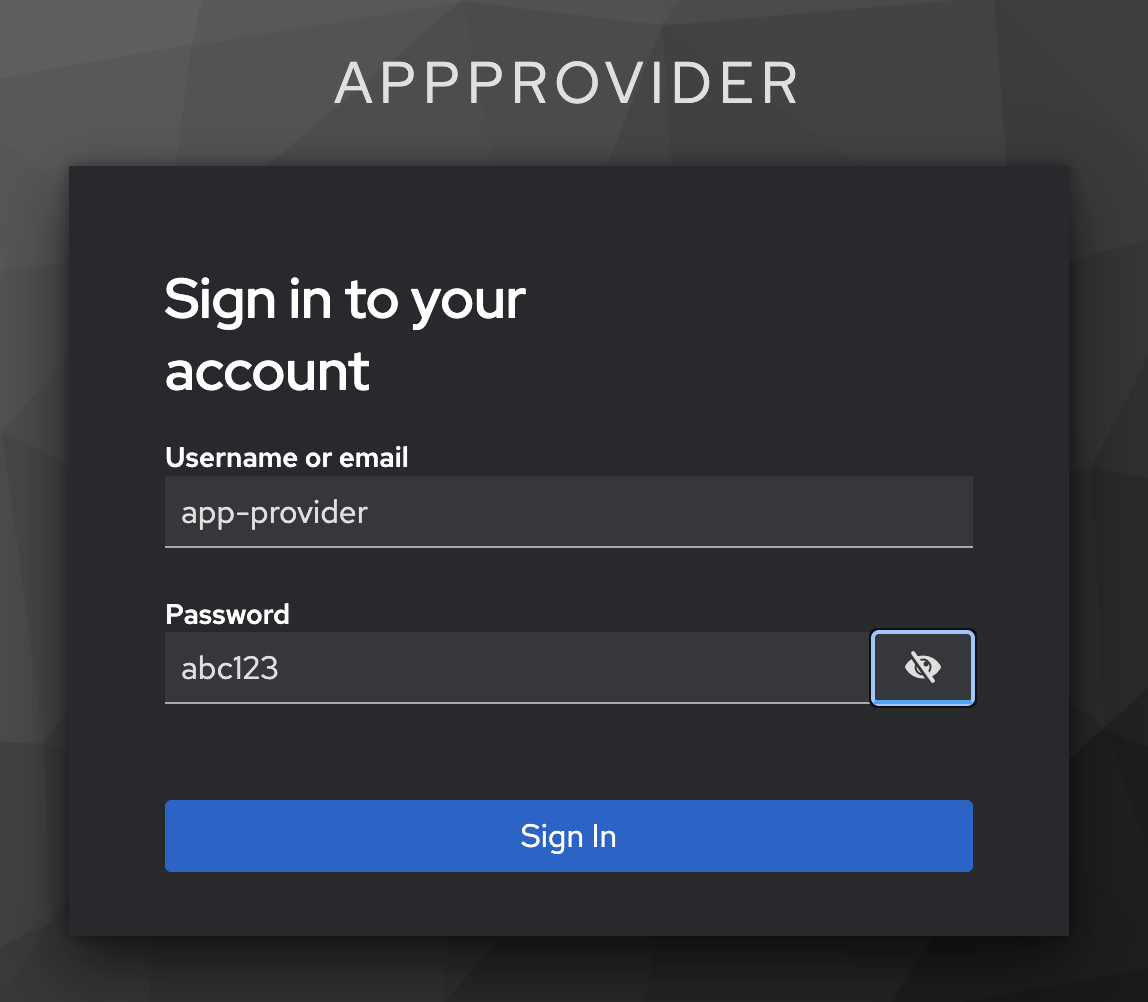
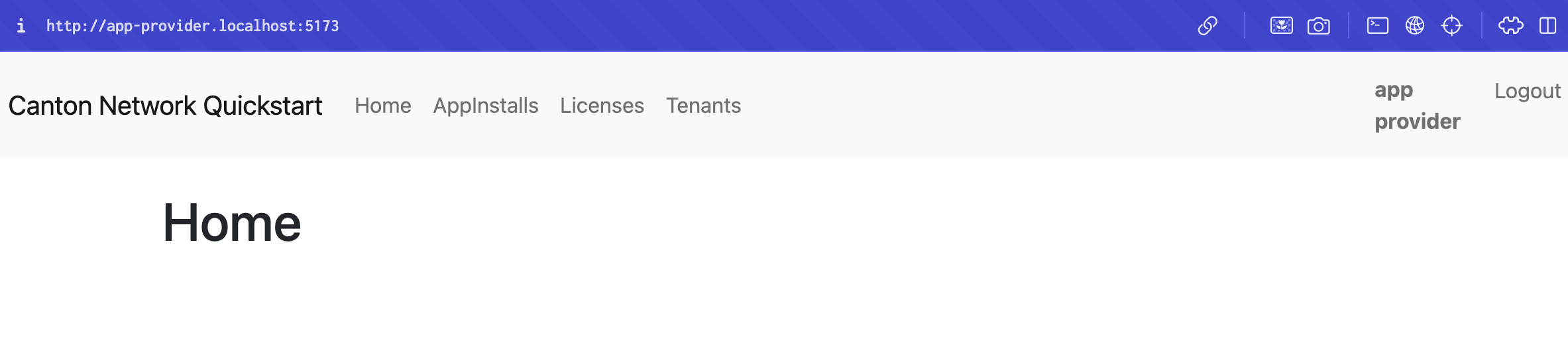
You sign in to the App Provider’s Quickstart homepage.
Congratulations! You’ve launched Quickstart to DevNet!
Note
Quickstart won’t immediately operate as it does on LocalNet.
You’ll need to refactor to resolve connectivity issues.
Perhaps begin with make create-app-install-request.
Appendix
Recipes
Start and stop scripts
In the future, use the provided start.sh and stop.sh scripts to quickly start and stop Quickstart DevNet Docker containers.
Use ./start.sh to run a live log stream in terminal. (exit with ctrl+c)
Opt for ./start.sh -d to spin up the containers without a log stream.
Stop all of the Quickstart DevNet Docker containers with ./stop.sh.
You may also remove the volumes with ./stop.sh -v.
Health check
You can check that Docker services are connected by checking docker ps.
To check a specific service use grep. e.g. docker ps | grep backend-service.
docker ps --format "table {{.Names}}\t{{.Status}}"
Via, CURL, get a token and then ping the service.
Get an auth token:
TOKEN=$(curl -s -X POST "http://keycloak.localhost:8082/realms/AppProvider/protocol/openid-connect/token" \
  -d "grant_type=client_credentials" \
  -d "client_id=app-provider-backend" \
  -d "client_secret=05dmL9DAUmDnIlfoZ5EQ7pKskWmhBlNz" | jq -r .access_token)
Call the service of your choice:
Backend health check: curl -H "Authorization: Bearer $TOKEN" http://localhost:8089/actuator/health
Super validator connectivity check
You may make a connectivity check to the DevNet super validator at anytime:
curl -s "https://scan.sv-1.dev.global.canton.network.sync.global/api/scan/v0/splice-instance-names"

View tables
You can explore the container schema by querying the list of tables.
docker exec -it splice-validator-postgres-splice-1 psql -U cnadmin -d validator -c "
  SELECT schemaname, tablename
  FROM pg_tables
  WHERE schemaname = 'validator'
  ORDER BY tablename;"
Confirm current migration ID
curl -s "https://docs.dev.global.canton.network.sync.global/info" | jq '.synchronizer?.active?.migration_id'
Find DSO fingerprint
curl -s "https://scan.sv-1.dev.global.canton.network.sync.global/api/scan/v0/dso-party-id"
Docker
Read docker logs
docker logs FAILING_VALIDATOR --tail 100
Kill running containers
docker kill $(docker ps -q)
Stop gracefully
docker stop $(docker ps -q)
docker ps -q lists the container IDs of running containers
$() passes those IDs to the kill or stop command
Remove containers after stopping
docker rm $(docker ps -aq)
One command
docker stop $(docker ps -q) && docker rm $(docker ps -aq)
Troubleshooting
Resolve vmnetd error
If you experience a vmnetd error response then the most straightforward solution is to update the validator compose port from 80 to 8080.

If necessary, to resolve “vmnetd running errors”, find nginx service in splice-node/docker-compose/validator/compose.yaml.
It is currently at line 163.
Change port 80:80 in "${HOST_BIND_IP:-127.0.0.1}:80:80" to 8080:80.
splice-node/docker-compose/validator/compose.yaml
nginx:
   image: "nginx:${NGINX_VERSION}"
   volumes:
     - ./nginx.conf:/etc/nginx/nginx.conf
     - ./nginx:/etc/nginx/includes
   ports:
     - "${HOST_BIND_IP:-127.0.0.1}:8080:80" # Change this line from 80:80 to 8080:80
   depends_on:
     - ans-web-ui
     - wallet-web-ui
     - validator
   restart: always
   networks:
     - ${DOCKER_NETWORK:-splice_validator}
   healthcheck:
     test: ["CMD", "service", "nginx", "status"]
     interval: 30s
     timeout: 10s
     retries: 3
     start_period: 60s
Troubleshoot frontend JavaScript mapping errors
Switch BACKEND_PORT from 8080 to 8089
Open cn-quickstart/quickstart/.env in a text editor and change BACKEND_PORT=8080 to BACKEND_PORT=8089.
Update proxyReq in vite configuration
Change line 35 in vite.config.ts from proxyReq.setHeader('host', 'app-provider.localhost') to proxyReq.setHeader('host', 'app-provider.localhost:5173').
Ping app-provider.localhost
ping -c 1 app-provider.localhost
If successful, navigate to the app at http://app-provider.localhost:5173 and login.
Check backend-service logs for errors
docker logs backend-service --tail 30
Find the login options
curl -s http://localhost:8089/login-links | jq
Get token for backend API access
TOKEN=$(curl -s -X POST "http://keycloak.localhost:8082/realms/AppProvider/protocol/openid-connect/token" \
  -d "grant_type=client_credentials" \
  -d "client_id=app-provider-backend" \
  -d "client_secret=05dmL9DAUmDnIlfoZ5EQ7pKskWmhBlNz" | jq -r .access_token)
Verify token was retrieved
echo "Token length: ${#TOKEN}"
Query data from PQS
Query app install requests
curl -H "Authorization: Bearer $TOKEN" http://localhost:8089/app-install-requests | head -10
Query license data
curl -H "Authorization: Bearer $TOKEN" http://localhost:5173/api/licenses
Error port is already in use
If terminal shows Error: Port 5173 is already in use identify and kill the associated node process, then run your command again.
lsof -i :5173
COMMAND   PID     USER       FD   TYPE  DEVICE  SIZE/OFF  NODE  NAME
node      12345   USERNAME   34u  IPv6  DEVICE  0t0       TCP   localhost:5173 (LISTEN)
kill -9 12345
Restart unhealthy Docker containers
If you have trouble connecting to healthy containers, restart the Docker containers and capture full logs.
Stop the container
docker compose -f splice-node/docker-compose/validator/compose.yaml down
Start fresh and capture the logs
docker compose -f splice-node/docker-compose/validator/compose.yaml up validator 2>&1 | tee validator-startup.log
Read logs in terminal:
docker logs splice-validator-validator-1 2>&1 | head -300
Replace splice-validator-validator-1 with the desired container.
Keycloak
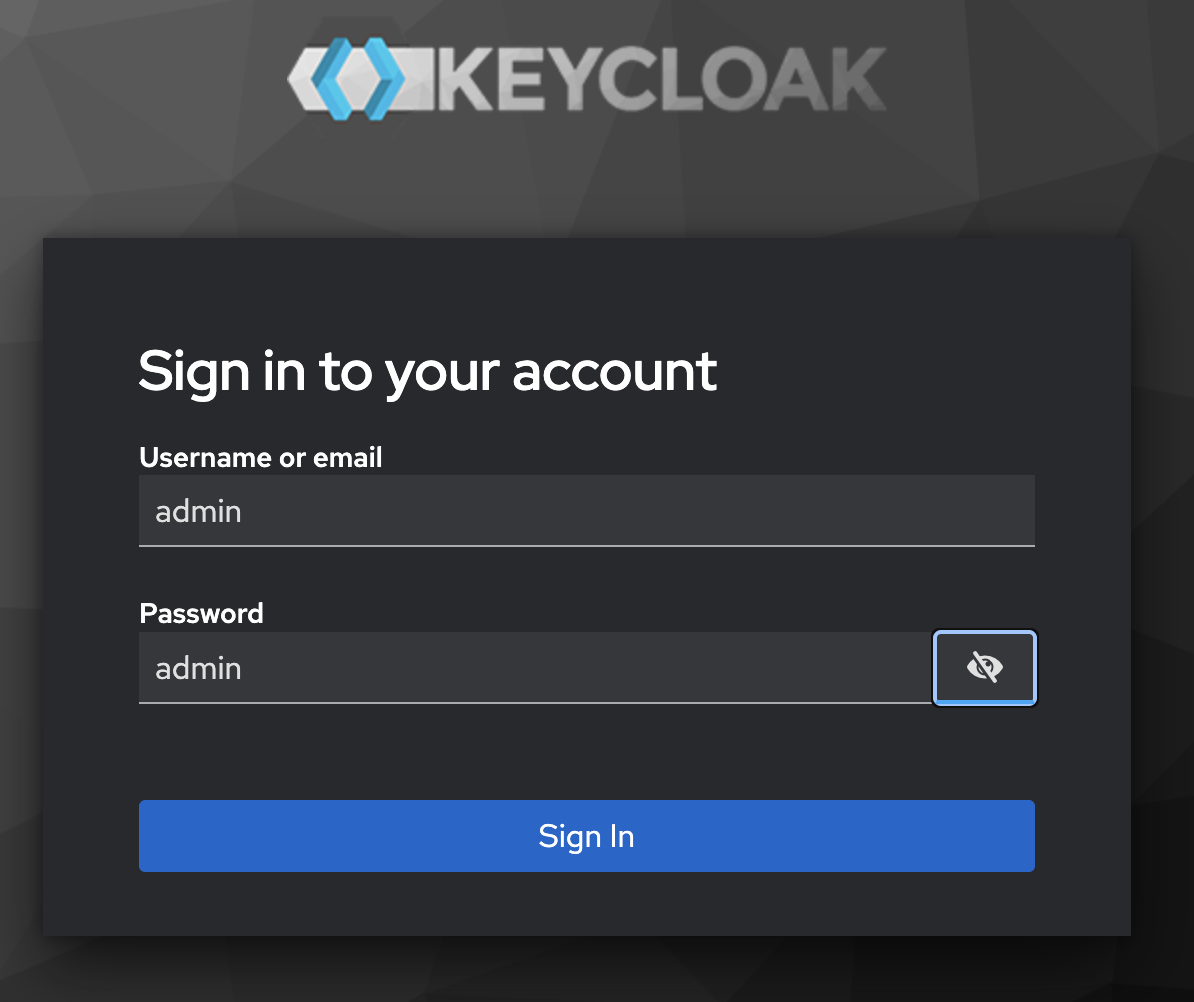
Note
You can login to the Keycloak admin GUI at http://host.docker.internal:8082/
Use admin for the username and password.
Check Keycloak logs:
docker logs keycloak
Check PostgreSQL:
docker logs postgres-keycloak
Check the OIDC discovery endpoint:
curl -s http://keycloak.localhost:8082/realms/AppProvider/.well-known/openid-configuration | jq .
Get an OAuth2 AppProvider realm token:
curl -s -X POST http://keycloak.localhost:8082/realms/AppProvider/protocol/openid-connect/token \
 -H "Content-Type: application/x-www-form-urlencoded" \
 -d "grant_type=password" \
 -d "client_id=app-provider-unsafe" \
 -d "username=app-provider" \
 -d "password=app-provider" | jq .access_token
Get an OAuth2 AppUser realm token:
curl -s -X POST http://keycloak.localhost:8082/realms/AppUser/protocol/openid-connect/token \
 -H "Content-Type: application/x-www-form-urlencoded" \
 -d "grant_type=password" \
 -d "client_id=app-user-unsafe" \
 -d "username=app-user" \
 -d "password=app-user" | jq .access_token
Check Keycloak’s public key location:
curl -s http://keycloak.localhost:8082/realms/AppProvider/.well-known/openid-configuration | jq .issuer
Expected response is "http://host.docker.internal:8082/realms/AppProvider"
Unable to login to Keycloak as admin
docker logs keycloak 2>&1 | grep -i "ssl\|https\|require" | tail -20
The following command disables the SSL requirements for the master realm and allows you to login as admin at localhost:8082.
docker exec -it keycloak /opt/keycloak/bin/kcadm.sh config credentials \
  --server http://localhost:8082 --realm master --user admin --password admin

docker exec -it keycloak /opt/keycloak/bin/kcadm.sh update realms/master \
  -s sslRequired=NONE
Splice-onboarding troubleshooting
Find specific env values:
docker exec splice-onboarding env | grep -E "PARTICIPANT|LEDGER"
Restart the splice-onboarding container:
cd cn-quickstart/quickstart/docker/modules/devnet
docker compose --env-file compose.env -f compose.yaml --profile devnet down -v
docker compose --env-file compose.env -f compose.yaml --profile devnet build --no-cache splice-onboarding
docker compose --env-file compose.env -f compose.yaml --profile devnet up -d
Watch the logs:
docker logs -f splice-onboarding
Query splice-onboarding networks:
docker inspect splice-onboarding --format '{{json .NetworkSettings.Networks}}' | jq
Check which network the splice-validator-nginx is on:
docker ps --format "{{.Names}}" | grep -E "nginx|validator|participant"
Then inspect that container to see its network:
docker inspect splice-validator-nginx-1 --format '{{json .NetworkSettings.Networks}}' 2>/dev/null | jq || \
docker network inspect splice-validator_splice_validator --format '{{range .Containers}}{{.Name}} {{end}}'
Check if splice-onboarding is initialized:
docker exec splice-onboarding cat /tmp/all-done && echo "SUCCESS"
Splice-onboarding connection issue
If you run splice-onboarding logs and see:
(base) devnet ~ % docker logs -f splice-onboarding
Start with mode --init
Initializing DevNet onboarding...
Waiting for external participant at grpc-ledger-api.localhost:8080...
Waiting for participant... attempt 1/60
Waiting for participant... attempt 2/60
Waiting for participant... attempt 3/60
Waiting for participant... attempt 4/60
Waiting for participant... attempt 5/60
Then there is likely an error in LEDGER_HOST or LEDGER_PORT.
Unset the variables or quit and restart terminal.